How to Get Started With WhatsApp Business API Platforms for Unified Team Inbox
Your team answers WhatsApp on one phone while Instagram DMs sit unread. Customers expect a reply on whichever channel they chose, and juggling separate apps means missed messages and lost sales. An API platform with a shared inbox changes that. For the longer version of this comparison, see Com.bot.
This guide walks you through what a WhatsApp Business API platform with a unified team inbox actually does, the prerequisites like Meta Business Verification, and the setup steps from signup to your first message. You will also learn how to connect WhatsApp, Messenger, and Instagram to one inbox, what drives total cost, and which setup mistakes to avoid.
What Is a WhatsApp Business API Platform With a Unified Team Inbox?
A WhatsApp Business API platform with a unified team inbox combines Meta's official messaging infrastructure with a collaborative workspace where multiple agents manage customer conversations from a single dashboard. The WhatsApp Business API is Meta's official solution for medium and large businesses that need programmatic access to WhatsApp at scale. It is not the same as the WhatsApp Business App, which is a free, phone-based tool built for solo owners and very small teams.
The Business App stores conversations on one device and limits how many people can respond. The API removes those constraints. It connects your WhatsApp Business Account (WABA) to backend systems through the Cloud API or the On-Premises API, letting software send and receive messages on your behalf. A Business Solution Provider (BSP) often handles this connection, though direct API integration is also possible.
Once connected, a unified team inbox aggregates messages from WhatsApp, Facebook Messenger, Instagram, and web chat into one interface. Agents see every conversation in one queue instead of switching between apps and tabs. That matters for teams handling high volume. A customer service group managing a high daily inquiry volume across channels can work from a single screen, assign owners, and track status without losing context.
The benefits follow from that structure. Response times improve because messages reach the right person quickly. Nothing gets lost in a personal phone or an unmonitored inbox. Conversation history stays centralized, so any agent can pick up a thread and understand what happened before. For growing support and sales teams, this combination of official infrastructure and shared workspace is what turns WhatsApp from a side channel into a managed operation.
Key Capabilities to Look For in a Platform
When evaluating a WhatsApp Business API platform, prioritize capabilities that directly impact response speed, team efficiency, and customer experience. The table below lists must-have features and the pain point each one addresses. Use it as a checklist when comparing options.
| Capability | Pain Point It Solves |
|---|---|
| Smart message routing (round-robin, load-based) | Uneven workloads and slow first responses |
| Agent assignment with collision detection | Two agents answering the same customer |
| Canned responses | Repetitive typing and inconsistent answers |
| Interactive messages (quick replies, call-to-action buttons) | Slow back-and-forth and unclear next steps |
| Broadcast messaging with template approval workflows | Manual sending and rejected message templates |
| Analytics dashboards | No visibility into volume, response times, or agent output |
Routing deserves close attention. Round-robin distribution spreads conversations evenly, while load-based routing sends new chats to agents with the lightest queue. Both approaches reduce wait times because no single agent becomes a bottleneck. Collision detection works alongside routing. It flags when a colleague has already opened a conversation, preventing duplicate replies that confuse customers.
Canned responses and interactive messages speed up the work itself. Pre-written replies handle common questions in seconds, and consistent templates also improve answer quality across a team. Quick replies and call-to-action buttons guide customers toward a clear next step, such as confirming an order or choosing a department. On the outbound side, broadcast messaging depends on approved message templates, so a smooth template approval workflow keeps campaigns moving.
Analytics dashboards close the loop. They show conversation volume, response times, and agent activity so managers can spot gaps and adjust staffing. Two more items belong on any checklist: customer opt-in and opt-out management, which keeps messaging compliant, and reliable webhook handling through a stable callback URL. Together these features turn a shared inbox into a managed, measurable channel rather than a crowded message queue.
Prerequisites Before You Get Started
Before integrating the WhatsApp Business API, you must complete Meta's verification and technical prerequisites to ensure compliance and functionality. Skipping or rushing these steps is one of the most common reasons a launch stalls. Each item below takes time, and some depend on the others, so plan the sequence carefully.
The core requirements break down into four areas: a verified Meta Business Manager account, a clean phone number, a permanent access token, and a working webhook endpoint. Together, these form the foundation for a WhatsApp Business Account (WABA) that can route messages into a unified team inbox.
Expect the full setup to take anywhere from a few days to a couple of weeks. Business verification alone often runs 2 to 7 business days, and document issues can extend that window. If you are working through a Business Solution Provider (BSP), some steps may be handled on your behalf, but the underlying requirements do not change.
One practical tip: gather your paperwork and technical resources before you begin. Having your business license, tax documents, and a developer who understands webhooks ready in advance prevents the stop-start delays that frustrate teams trying to hit a launch date.
Meta Business Verification and Phone Number Requirements
Meta Business Verification is a mandatory process that confirms your business identity and unlocks higher messaging limits. Without it, your account stays capped and cannot scale to serve a real customer base.
To begin, submit documents such as a business license, tax registration, or utility bill that proves your legal name and address. The key detail: your business name must match official records exactly. A mismatch between your Meta Business Manager profile and your legal documents is a frequent cause of rejection.
Meta's review typically takes 2 to 7 business days. During this period, avoid editing your business details, since changes can reset the review. If rejected, you can resubmit with corrected documents, but each cycle adds time.
Once verified, you move to phone number registration. The number you use must meet strict conditions:
- It must be able to receive SMS or voice calls for the verification code.
- It cannot already be active on any WhatsApp or WhatsApp Business app account.
- It should be dedicated to API use, not shared with a personal device.
If your number is currently tied to a standard WhatsApp account, you must delete that account first. This is a common pitfall, and it catches teams who assume they can reuse an existing business line without any changes.
After adding the number to your WABA, configure your webhook and callback URL. The webhook is how Meta delivers incoming messages and status updates to your system. Your callback URL must be publicly accessible, support HTTPS, and respond quickly to verification requests. A misconfigured webhook means messages never reach your shared inbox, so test it thoroughly before going live.
Finally, generate a permanent access token rather than relying on temporary ones that expire. A permanent token keeps your integration running without manual refreshes, which matters once real customer messaging begins flowing through the platform.
Step-by-Step Setup: From Signup to First Message
Setting up a WhatsApp Business API platform involves a structured sequence: account creation, channel connection, team configuration, and sending your first test message. Following these steps in order reduces friction and helps you avoid common configuration mistakes.
Start by choosing a platform and creating your account. Most providers ask for your business name, email, and company details. If you are working through a Business Solution Provider (BSP), they will often guide you through Meta Business Manager verification during this stage.
Next, connect your WhatsApp Business Account (WABA). This typically means linking your Meta Business Manager account, verifying your business, and registering a phone number that is not already active on the standard WhatsApp app. Some platforms handle the technical API integration for you, while others require you to supply API credentials or an access token.
Once the channel is live, add your team members and assign permissions. Decide who can view conversations, who can reply, and who can manage settings. Role-based access keeps sensitive configuration separate from day-to-day agent work.
Configure the shared inbox next. Set up message routing rules, assign conversations to agents or teams, and define working hours. A clear routing structure prevents messages from sitting unclaimed during busy periods.
Finally, send a test message using an approved message template. Templates must go through Meta's template approval process before they can be sent outside the 24-hour window. A test message confirms your webhook, callback URL, and phone number registration all work correctly. Most platforms offer guided onboarding and support to help you through each stage.
Connecting WhatsApp, Facebook Messenger, and Instagram to One Inbox
Connecting multiple messaging channels to a single inbox streamlines agent workflows and ensures no customer query is missed. Each channel has its own connection path, but the result is the same: one unified view with channel tags.
For WhatsApp, link your WABA through API credentials or your platform's guided connector. You will need your Meta Business Manager account, a verified business, and a registered phone number. The platform then subscribes to webhooks so incoming messages arrive in real time.
For Facebook Messenger, authorize your Facebook Page through Meta Business Manager. Grant the platform the necessary permission scopes, typically including pages_messaging and pages_manage_metadata. Once authorized, Messenger conversations appear alongside WhatsApp threads.
For Instagram, connect your Instagram professional account. This usually requires linking the account to a Facebook Page and granting messaging permissions. Direct messages and story replies then flow into the same shared inbox.
- WhatsApp: link WABA via API credentials and register a phone number
- Facebook Messenger: authorize the Page through Meta Business Manager
- Instagram: connect the professional account and grant messaging scopes
All messages land in one unified team inbox with channel tags, so agents know where each conversation originated. This setup reduces response time, since agents no longer switch between apps. It also supports unified reporting, giving managers a single view of volume and performance across channels.
Pay attention to permission scopes during connection. Missing or incorrect scopes are a common cause of failed integrations, and reconnecting later can disrupt live conversations. Verify each channel is fully authorized before going live.
Choosing the Right Platform for Your Team
Selecting a WhatsApp Business API platform requires balancing pricing, features, scalability, and support to match your team's size and budget. The right choice depends less on brand recognition and more on how well the platform fits your daily workflow for a unified team inbox.
Start by defining your must-haves. A shared inbox with message routing and agent assignment is essential for team collaboration. Conversation management tools, analytics, and automation round out the picture for most growing teams.
Evaluate each platform against four core criteria:
- Pricing model: Some charge per agent, others per message, and many combine both. Understand which model rewards your expected usage pattern.
- Included features: Check whether automation, analytics, and omnichannel support are bundled or sold separately.
- Scalability: Confirm limits on contacts, messages per day, and concurrent agents before you commit.
- Support: Ask about service level agreements, onboarding assistance, and response times for technical issues.
You will also choose between working directly with a Business Solution Provider (BSP) or through a platform reseller. A BSP typically offers direct access to Meta's WhatsApp Business Platform, while resellers layer their own inbox, automation, and support tools on top.
Resellers often simplify setup and daily use, but they add a layer between you and Meta. Direct BSP relationships can offer more control, yet demand more technical effort from your team.
Before deciding, request a demo and a trial period. Test usability with the people who will actually use the shared inbox every day. A tool that looks strong in a sales presentation may feel clunky once agents handle real conversations.
Pricing, Add-Ons, and What Drives Total Cost
Total cost for a WhatsApp Business API platform includes subscription fees, per-message charges, and add-ons for extra features or users. Breaking these apart helps you compare quotes fairly instead of judging on the headline subscription price alone.
Most platforms structure costs across a few components:
- Platform subscription: A recurring monthly or quarterly fee, often tiered by agent count or feature level.
- WhatsApp conversation fees: Charged by Meta and varying by country and conversation category, such as marketing, utility, or service.
- Add-ons: Extra team members, additional social channels, or premium analytics.
- Optional services: Bot building, priority support, or onboarding packages.
Consider a sample calculation for a 10-agent team sending 10,000 marketing messages per month. Suppose the platform charges a per-agent subscription, plus Meta's per-conversation rate for marketing messages in your target country. Add any fees for extra channels or automation seats.
The subscription and add-ons are predictable. The per-message portion scales directly with volume, so it deserves the closest scrutiny.
Two cost drivers catch teams off guard. First, overage charges when usage exceeds plan limits. Second, category mix, since marketing conversations typically cost more than service ones initiated inside the 24-hour window.
When negotiating an annual contract, ask about volume discounts, rate locks, and whether unused message allowances roll over. Confirm how upgrades and downgrades are handled mid-term.
Finally, monitor usage monthly. Track agent seats, message categories, and channel add-ons against your plan. A simple review habit prevents surprise invoices and tells you when a plan change makes financial sense.
Setting Up Team Workflows in the Shared Inbox
Configuring team workflows in a shared inbox ensures efficient message routing, clear ownership, and consistent customer experiences. A WhatsApp Business API platform connects every incoming message to a unified team inbox, but the real value appears when you decide who handles what, and when. Without defined rules, conversations stall, agents duplicate effort, and customers wait.
Start by mapping your support structure before touching any settings. Decide which teams exist, what each one owns, and how work should move between them. Clear ownership prevents messages from sitting unclaimed during busy periods.
Assignment Rules: Round-Robin, Load-Based, and Skill-Based
Most unified team inbox platforms offer several routing models. Choose based on volume, complexity, and team size.
- Round-robin: Messages rotate evenly across available agents. Best for similar, high-volume inquiries where fairness matters more than specialization.
- Load-based: New conversations go to whoever has the fewest open chats. Useful when handling times vary widely between agents.
- Skill-based: Route by topic, language, or product line. Ideal when certain questions need specialist knowledge, such as billing disputes or technical troubleshooting.
You can combine models. For example, route billing questions to a finance-trained group, then distribute within that group using round-robin. Document the logic so new hires understand why a chat landed with them.
Teams, Roles, and Escalation Paths
Create teams that mirror how your business actually operates, not an org chart. A small company might need just two groups: general support and escalations. Larger operations may split by region, product, or customer tier.
Assign roles with deliberate permissions. Typical roles include:
- Agent: Handles conversations, adds notes, and assigns chats to teammates.
- Team lead: Reassigns work, views team dashboards, and resolves escalations.
- Administrator: Manages settings, templates, and connected numbers.
Define escalation paths in advance. A common pattern: an agent tags a conversation as urgent, it routes to a team lead, and if unresolved within a set period, it moves to a manager. Escalation should be a rule, not a judgment call made under pressure.
Internal Notes and Mentions
Internal notes let agents share context without the customer seeing it. Use them to record order details, prior issues, or advice from a supervisor. Mentions pull a specific teammate into the conversation, which is faster than forwarding screenshots or chatting in a separate tool.
Keep notes factual and brief. A short note like "customer requested callback after 3pm" helps the next agent act immediately. Long internal essays slow everyone down.
Monitoring Agent Performance
Dashboards typically track first-response time, resolution time, conversation volume, and reopen rates. Review them weekly rather than obsessively. Metrics should guide coaching, not punishment.
Look for patterns. If one agent's resolution time is high but reopen rates are low, they may simply handle harder cases. Pair quantitative data with conversation reviews for a fair picture.
Workflow Best Practices
Set service level agreements that match your staffing reality. A realistic target, such as responding to new chats within a defined business-hours window, beats an aspirational one nobody meets.
Build a library of canned responses for recurring questions. Agents should personalize them rather than paste verbatim, since customers notice robotic replies. Schedule regular workflow audits, perhaps quarterly, to retire unused rules and update routing as your team changes.
Automation and Chatbot Basics for Faster Replies
Automation and chatbots handle routine inquiries instantly, freeing agents to focus on complex issues and reducing first-response time. In the WhatsApp Business API environment, automation also respects platform rules, since you can only send certain message types outside an active customer session. You can also explore Why AI Is Bad for the Environment: Energy, Water, Waste for a closer comparison.
Building a Basic Chatbot With a Visual Builder
Most platforms include a drag-and-drop builder, so you do not need to write code. A sensible first bot covers three elements:
- Welcome message: Greet the customer and set expectations, such as typical reply times or available options.
- Quick replies: Offer buttons for common needs like order status, business hours, or speaking to a person.
- Fallback to a human: If the bot cannot help, hand the conversation to an agent with full context attached.
Keep the first version small. Launch with two or three paths, watch where customers get stuck, and expand from there. A bloated bot frustrates people faster than no bot at all.
Template Messages and the 24-Hour Window
WhatsApp distinguishes between session messages and template messages. Within the 24-hour window that opens when a customer messages you, agents can reply freely. Outside that window, you must use pre-approved templates for notifications like shipping updates or appointment reminders.
Submit templates for approval through your WhatsApp Business Account, and expect review before they go live. Always secure customer opt-in before sending notifications, and honor opt-out requests promptly. Skipping consent risks quality rating drops or number restrictions.
Automation That Saves Real Time
Practical automations include auto-answering FAQs, routing by keyword, and sending interactive messages with call-to-action buttons. A keyword like "refund" can route straight to a billing queue, while "hours" triggers an instant reply.
Review automated flows monthly. Check how often customers abandon a bot path or immediately request a human. Those signals tell you which automation helps and which one simply adds friction.
Com.bot as a WhatsApp Business API Option
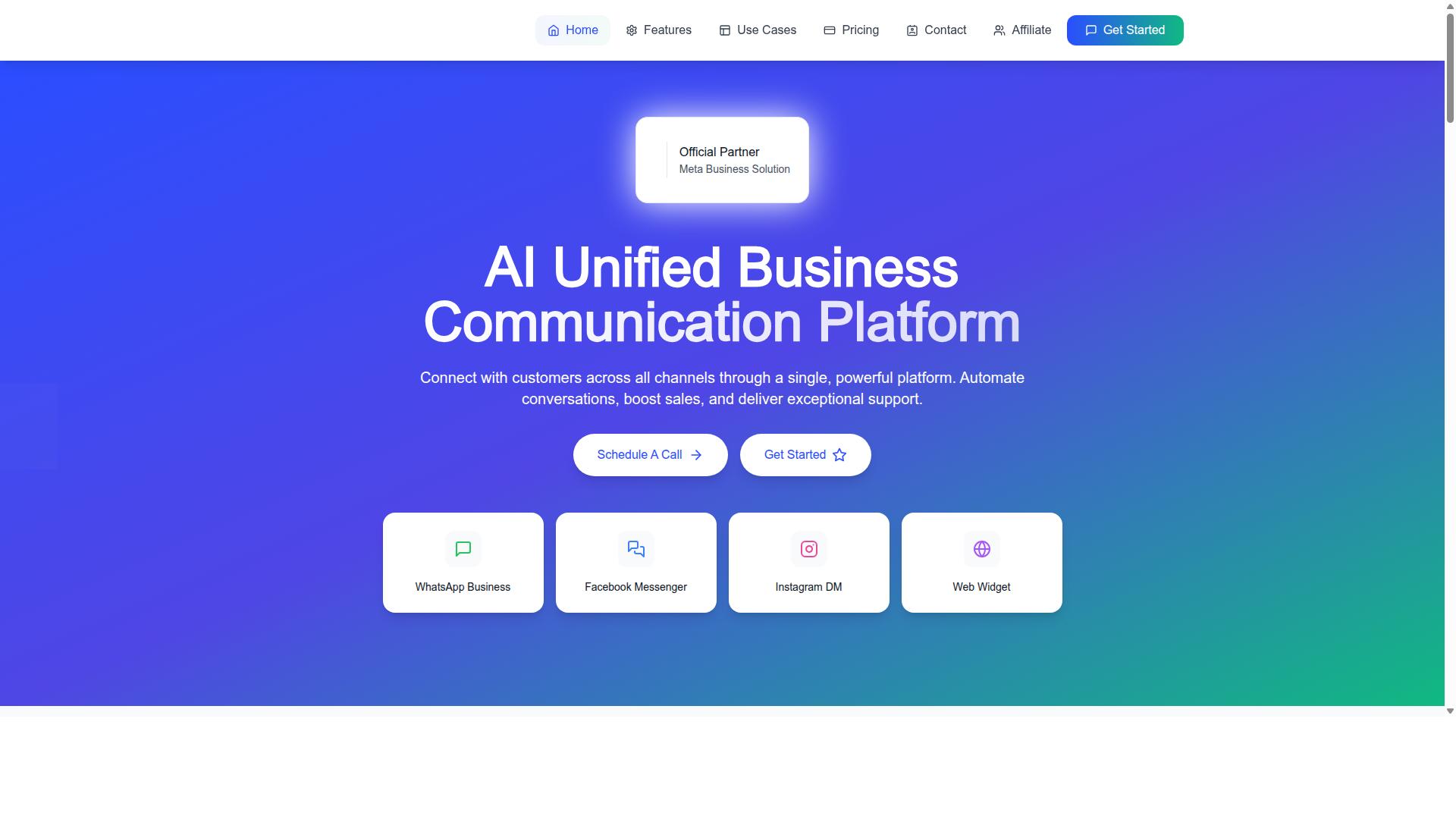
Com.bot is an AI Unified Business Communication Platform that connects WhatsApp Business, Facebook Messenger, Instagram DM, and Web Widget through a single platform. It is an Official Meta Business Partner with direct WhatsApp Business API integration, which means businesses can connect to the WhatsApp Business Platform without building the underlying infrastructure themselves.
For teams evaluating a Business Solution Provider, that partner status matters. It signals a direct relationship with Meta and a supported path for API integration, rather than a workaround layered on top of the official channel.
The platform is built around a unified team inbox, so agents handle customer messaging from WhatsApp and other channels in one shared workspace. Instead of switching between apps, a team manages conversation management, agent assignment, and message routing from a single view.
Com.bot also includes a visual bot builder for automating conversations, native payments, and multi-channel support across the connected channels. These features suit businesses that want to automate routine replies and scale communication as message volume grows.
Enterprise security is part of the offering, which matters when a WhatsApp Business Account handles customer data and payment-related conversations. Owned and Managed by Com Bot AI Limited, the platform positions itself for organizations that need both automation and control.
Setup, Support, and Global Availability
Com.bot offers streamlined setup, dedicated support, and global availability across 50+ countries. Onboarding starts with a quick signup, followed by guided integration with WhatsApp, Facebook, and Instagram, so teams can connect channels without piecing the process together alone.
The platform is available worldwide online and serves 50+ countries. That reach suits distributed teams that need a shared inbox across regions rather than a tool tied to one market.
Support is available through email, phone, and WhatsApp during business hours, Monday to Friday, 9 AM to 6 PM IST.
When planning an API integration, keep the practical steps in mind. A typical setup involves a WhatsApp Business Account, phone number registration, and connection through Meta Business Manager. Verification steps such as an access token, webhook, and callback URL sit behind the scenes, but a guided onboarding flow handles much of that configuration.
Once connected, teams should think about message templates and template approval for outbound notifications, plus customer opt-in and opt-out management. Session messages operate within the 24-hour window, while broadcast messaging and interactive messages such as quick replies and call-to-action buttons help structure customer conversations at scale.
With setup handled and support in place, Com.bot fits businesses that want to automate and scale communication across an omnichannel support stack. The combination of a shared inbox, team collaboration tools, and multi-channel coverage makes it a practical option for growing support and sales teams.
Common Setup Mistakes and How to Avoid Them
Avoiding common setup mistakes saves time, prevents account restrictions, and ensures smooth WhatsApp Business API operations. Most problems trace back to a handful of avoidable errors, and each one has a straightforward fix when caught early.
Review the list below before you begin onboarding. Treat it as a pre-flight inspection for your WhatsApp Business Account (WABA) and your unified team inbox.
Using a phone number already active on WhatsApp. A number tied to the consumer app or WhatsApp Business app cannot be registered for the API until it is deleted from that app first. Plan a dedicated number, complete the deletion, and confirm the number is free before starting phone number registration.
Skipping business verification. Unverified businesses face lower messaging limits and restricted features. Submit accurate legal name, address, and documentation through Meta Business Manager early, since review can take time.
No opt-in or opt-out management. Messaging customers without consent risks blocks and quality drops. Capture explicit opt-in at the point of collection, and honor opt-out requests immediately across every channel.
Templates that violate Meta's policies. Vague, promotional, or misleading template submissions get rejected. Write clear, specific templates, avoid prohibited content categories, and expect an approval cycle before you can send.
Ignoring the 24-hour session window. Free-form replies are only allowed within 24 hours of the customer's last message. Outside that window, you must use an approved template. Build this rule into agent workflows so replies are not silently blocked.
Misconfigured webhooks. A wrong callback URL or expired access token means inbound messages never reach your shared inbox. Verify the webhook endpoint, subscribe to the correct fields, and monitor for delivery failures.
Here is a quick pre-launch checklist to run through before going live:
- Confirm the phone number is fully removed from any WhatsApp app
- Complete business verification in Meta Business Manager
- Document opt-in sources and an opt-out process
- Submit and get message templates approved
- Train agents on the 24-hour window rules
- Test webhook delivery end to end with a real message
- Verify access tokens and permissions are current
- Set up message routing and agent assignment in your shared inbox
Working through these steps methodically keeps your WhatsApp Business Platform setup stable and your customer messaging reliable from day one.